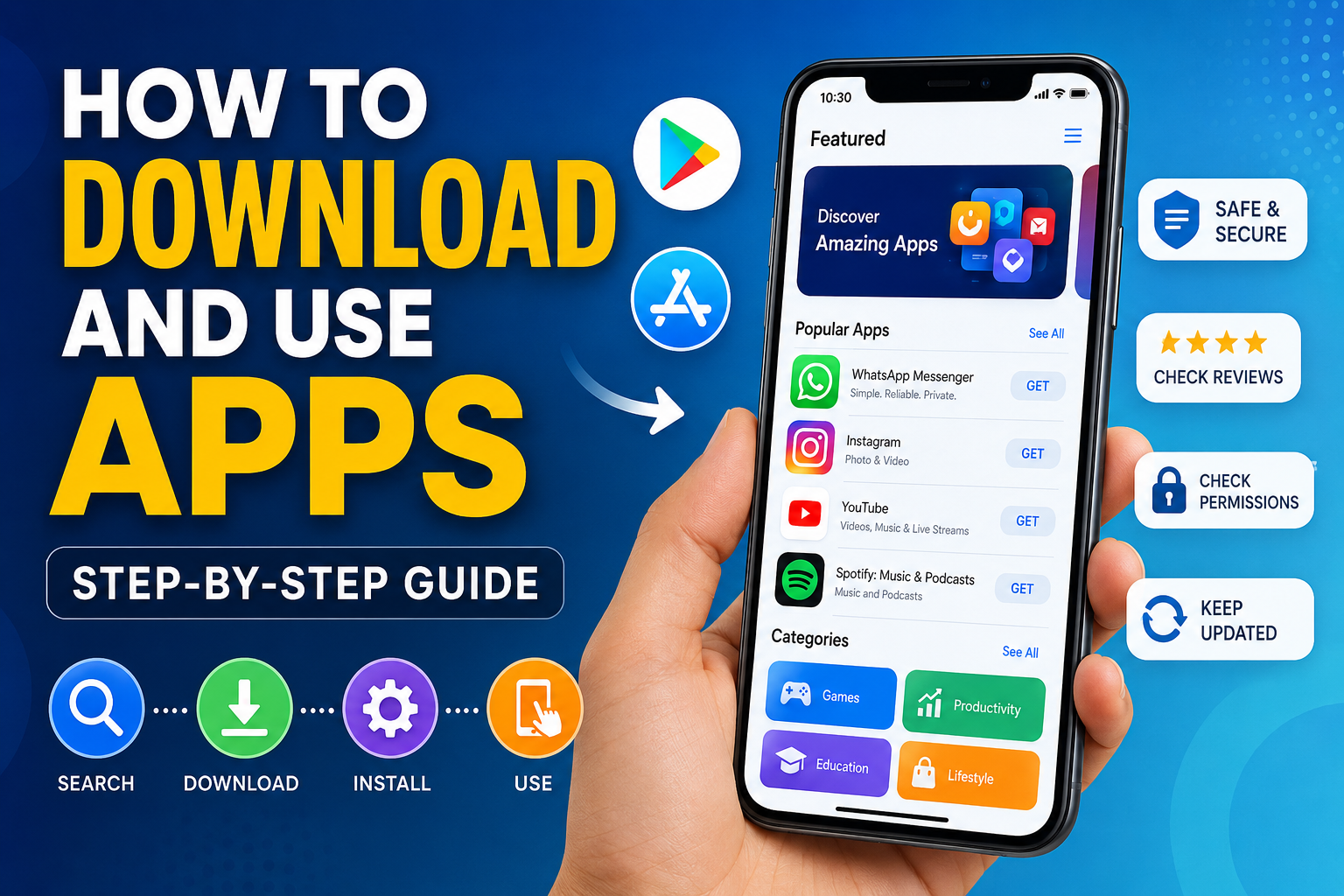
How to Download and Use Apps Easily
Introduction
In today’s digital world, knowing how to download and use apps is an essential skill. Whether you’re using a smartphone, tablet, or computer, apps help you communicate, work, shop, learn, and stay entertained. But for beginners, the process can sometimes feel confusing or even risky.
This guide will walk you through everything you need to know—from downloading apps safely to using them efficiently. You’ll also learn how to manage permissions, avoid scams, and troubleshoot common issues. By the end, you’ll feel confident navigating app stores and making the most out of your device.
What Is “How to Download and Use Apps”?
How to download and use apps refers to the process of finding, installing, and operating software applications on a device like a smartphone or computer. It includes accessing official app stores, installing apps securely, granting permissions, and learning how to use features effectively for daily tasks.
Understanding App Downloads Across Devices
Mobile Devices (Android & iPhone)
Most people download apps through official app stores:
- Google Play Store (for Android devices)
- Apple App Store (for iPhones and iPads)
These platforms ensure apps meet security and quality standards. Users can search for apps, read reviews, and install them with a single tap.
Example:
If you want to install WhatsApp, simply open your app store, search for it, and tap “Install.”
Computers (Windows & macOS)
Apps on computers can be downloaded from:
- Official websites
- Microsoft Store (Windows)
- Mac App Store (macOS)
Unlike mobile devices, computers often allow direct downloads from websites, but this requires extra caution.
Smart TVs and Other Devices
Smart TVs, tablets, and even gaming consoles also have built-in app stores. The process is similar:
- Open the app store
- Search for the app
- Install and launch
Step-by-Step Guide to Download Apps
Step 1: Open the App Store
Find the app store icon on your device:
- Android → Play Store
- iPhone → App Store
Tap to open.
Step 2: Search for the App
Use the search bar and type the app name.
Tip: Always check the developer’s name to avoid fake apps.
Step 3: Check Reviews and Ratings
Before downloading, review:
- Star ratings
- User feedback
- Number of downloads
This helps ensure the app is trustworthy.
Step 4: Tap Install or Download
Click the “Install” or “Get” button.
- On Android: App installs automatically
- On iPhone: You may need Face ID, Touch ID, or password
Step 5: Open the App
Once installed, tap “Open” or find the app icon on your home screen.
How to Use Apps Effectively
Understanding App Permissions
When you open an app for the first time, it may request access to:
- Camera
- Location
- Contacts
Best Practice: Only allow permissions necessary for the app to function.
Creating an Account
Many apps require sign-up:
- Email address
- Phone number
- Password
Use strong passwords and avoid sharing personal details unnecessarily.
Navigating the Interface
Most apps follow a simple layout:
- Home screen
- Menu or settings
- Navigation tabs
Spend a few minutes exploring to understand how it works.
Safety Tips When Downloading Apps
Download Only from Official Sources
Avoid third-party websites unless absolutely necessary. Official stores provide better security.
Check App Permissions Carefully
If a simple app asks for unnecessary permissions (like access to contacts), it could be suspicious.
Keep Apps Updated
Updates fix bugs and improve security. Enable auto-updates when possible.
Avoid Free Versions of Paid Apps from Unknown Sources
These may contain malware or harmful code.
Common Problems and How to Fix Them
App Not Downloading
Possible reasons:
- Poor internet connection
- Low storage space
Solution:
- Switch to Wi-Fi
- Free up space
App Crashing or Not Opening
Fixes:
- Restart your device
- Update the app
- Clear cache (Android)
Forgot Password
Most apps offer a “Forgot Password” option. Use your email or phone number to reset it.
Advanced Tips for Better App Usage
Organize Your Apps
Group apps into folders:
- Social
- Work
- Entertainment
This makes navigation easier.
Manage Storage
Delete apps you no longer use to save space and improve device performance.
Use App Settings
Explore settings to:
- Customize notifications
- Change themes
- Adjust privacy controls
FAQ Section
Q: How do I download apps safely?
A: Always use official app stores like Google Play Store or Apple App Store. Check ratings, reviews, and developer details before installing. Avoid downloading APK files from unknown websites, as they may contain malware or security risks.
Q: Why can’t I download apps on my phone?
A: Common reasons include poor internet connection, insufficient storage, or outdated software. Try connecting to a stable network, clearing space, or updating your device’s operating system.
Q: Do I need an account to use apps?
A: Not all apps require accounts, but many do for personalized features. For example, social media and banking apps need login credentials to function properly.
Q: Are free apps safe to use?
A: Most free apps are safe if downloaded from official stores. However, be cautious of apps with very low ratings, excessive ads, or unusual permission requests.
Q: How do I update my apps?
A: Open your app store, go to “My Apps” or “Updates,” and tap “Update All” or update individual apps. Keeping apps updated ensures better performance and security.
Q: Can I delete apps after installing them?
A: Yes, you can uninstall apps anytime. Simply press and hold the app icon and select “Uninstall” or go to settings and remove it from the app list.
Conclusion
Learning how to download and use apps is a fundamental digital skill that makes everyday life easier and more productive. From installing apps safely to managing permissions and troubleshooting issues, understanding the process helps you stay secure and efficient.
By using official app stores, checking reviews, and staying cautious about permissions, you can avoid common risks. As you explore more apps, you’ll become faster and more confident in navigating your device.
With the right approach, apps can truly enhance your daily routine—whether for communication, entertainment, or productivity.


One Comment