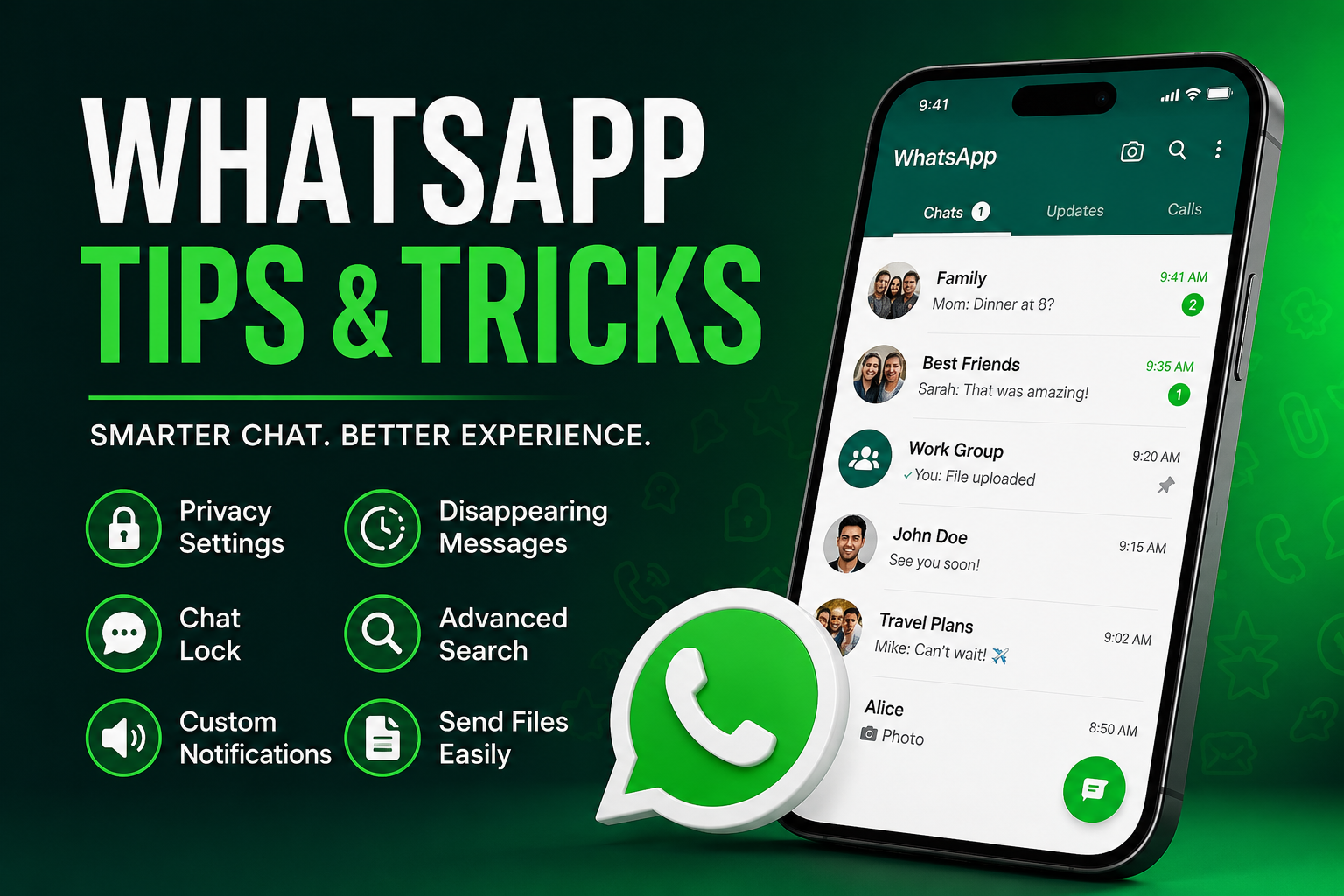
WhatsApp Tips and Tricks: 15 Smart Features to Use Better in 2026
Master Privacy, Productivity, and Hidden Features
WhatsApp has become more than a messaging app. For millions of people, it’s where conversations happen, files are shared, groups are managed, and everyday communication lives. Yet most users only scratch the surface of what the app can do.
Learning the right WhatsApp Tips and Tricks can make your chats faster, safer, and far more organized. From privacy controls and chat locks to hidden productivity features and better media sharing, small adjustments can dramatically improve the experience.
This guide brings together practical, verified techniques that actually make a difference in daily use, whether you use WhatsApp for personal conversations, work coordination, or community groups. WhatsApp Tips and Tricks
Why Learning WhatsApp Features Matters
Most messaging frustration comes from clutter, notification overload, and privacy concerns rather than the app itself.
WhatsApp continues expanding tools around security, organization, and communication efficiency. Features like advanced privacy controls, HD media sharing, chat protection, and improved group functionality mean users can customize the app much more than before.
Use WhatsApp Like a Productivity Tool
A few settings changes can turn WhatsApp into something closer to a lightweight productivity platform.
You can organize important chats, save information to yourself, control distractions, and manage conversations more intentionally instead of reacting to every notification.
1. Use “Message Yourself” as a Personal Workspace
One of the most useful but overlooked features is messaging yourself.
Open WhatsApp and search your own contact. That private chat becomes a place to:
- Save quick notes
- Store links
- Send documents between devices
- Keep travel details
- Save screenshots for later
Because the conversation syncs across connected devices, it works surprisingly well as a lightweight digital notebook.
When This Feature Works Best
People often use external note apps for simple reminders. If your workflow already lives inside WhatsApp, keeping temporary information in one place reduces friction.
2. Customize Notifications for Important People
Not every conversation deserves the same level of attention.
Open any chat → tap the profile → Notifications.
You can assign unique tones, mute noisy groups, or reduce interruptions while keeping critical contacts active. This becomes especially valuable if work and personal communication happen in the same app.
Create Quiet Without Missing Important Messages
Instead of muting everything, prioritize only conversations that truly matter.
That balance keeps WhatsApp useful instead of overwhelming.
3. Lock Sensitive Conversations
Chat Lock adds another layer of protection for private conversations.
Locked chats move into a protected folder and require device authentication such as fingerprint, Face ID, passcode, or a secret code depending on your device setup. Notification previews are also reduced for privacy.
How to Enable Chat Lock
- Open a conversation
- Tap the contact or group name
- Select Chat Lock
- Confirm with device authentication
This is especially helpful on shared devices.
4. Strengthen Your Privacy Settings
Many users never revisit privacy settings after installing the app.
Open:
Settings → Privacy
Review:
- Last Seen & Online
- Profile Photo
- Status
- Read Receipts
- Group Permissions
WhatsApp allows more granular controls than many people realize, including showing information only to selected contacts.
Consider Advanced Privacy Features
Recent privacy updates introduced stronger controls in certain chats and groups, including restrictions around exporting conversations and automatic media downloads in supported scenarios.
5. Send Photos and Videos in Better Quality
Compressed images can ruin details.
When sending media:
- Select photos
- Tap HD
- Send the higher-quality version
This works well for travel images, documents, and screenshots where readability matters.
Share Smarter, Not Larger
HD uploads preserve quality while remaining easier to manage than external file-sharing tools.
6. Star Messages Instead of Searching Forever
Long chats become difficult to navigate.
Star important messages by pressing and holding them, then tapping the star icon.
You can later access everything in one place without scrolling through months of conversation history.
Great Uses for Starred Messages
- Addresses
- Meeting details
- Password reminders
- Payment references
- Shared links
7. Use Disappearing Messages for Temporary Conversations
Not every message needs permanent storage.
Disappearing messages automatically remove content after a selected time period.
This feature works well for routine coordination, temporary updates, and reducing digital clutter.
Think of It as Conversation Hygiene
Fewer old messages can make navigation cleaner and reduce unnecessary retention.
8. Organize Group Chats More Efficiently
Group chats continue becoming more capable.
Recent improvements include event reminders, member tags, and better coordination tools inside groups. These features help users manage communities, teams, and family conversations more effectively.
Reduce Group Noise
Mute groups that don’t require instant attention and only enable alerts where timing matters.
9. Search Messages Instead of Scrolling
WhatsApp search is more powerful than many users expect.
Search for:
- Keywords
- Media
- Documents
- Links
- Dates (where supported)
Finding information this way is dramatically faster than endless scrolling.
10. Enable Two-Step Verification
Security starts with account protection.
Two-step verification adds a PIN requirement that makes unauthorized access more difficult.
Open:
Settings → Account → Two-Step Verification
Follow the setup instructions and store recovery details safely.
Extra Security Is Worth the Minute
Most people only think about security after a problem appears.
Preventive setup usually takes less time than recovery.
Frequently Asked Questions
Q: What is the most useful WhatsApp trick?
A: For most users, messaging yourself is one of the most practical features because it works as a note system, quick file transfer space, and personal organizer.
Q: Can WhatsApp chats be locked?
A: Yes. Chat Lock allows selected conversations to move into a protected area that requires authentication to access.
Q: How do I improve privacy on WhatsApp?
A: Review Last Seen, Online visibility, Profile Photo settings, Read Receipts, and group permissions under Privacy settings.
Q: Does WhatsApp support disappearing messages?
A: Yes. You can enable disappearing messages to automatically remove conversations after a selected period.
Q: Can I send HD photos on WhatsApp?
A: Yes. Select media and use the HD option before sending to preserve better image quality.
Final Thoughts
The best WhatsApp Tips and Tricks are rarely flashy. They save time, reduce distractions, improve privacy, and make communication smoother day after day.
Start with small upgrades: customize notifications, lock important chats, enable stronger privacy settings, and use starred messages or self-chat for organization. Once these habits become routine, WhatsApp feels less like another noisy app and more like a tool built around how you actually communicate.
Explore a few features at a time and adjust the app to fit your workflow rather than adapting yourself to it.